Dipin krishna
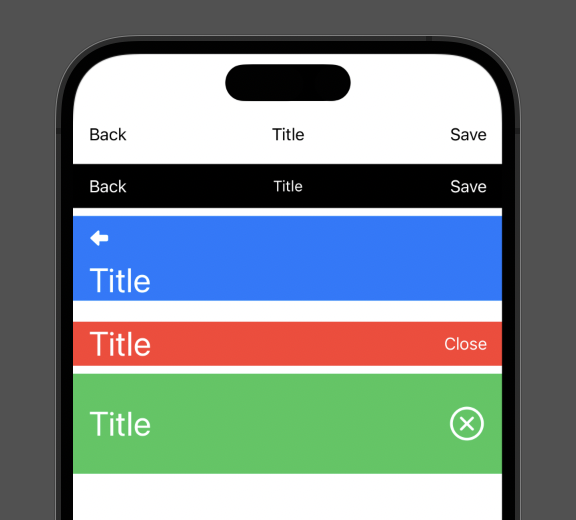
SwiftUI: Create a Custom Navigation Bar
In this article we are not customizing a navigation view or a navigation stack. We are simply creating a custom View to be used as a navigation bar.

How to Use msmtp with PHP’s mail() Function to Send Email
In this guide, let’s explore how to set up PHP to use msmtp, a lightweight SMTP client, as its MTA.

How To Deploy a Django project on an Ubuntu server with Nginx
Here’s a general outline of How to Deploy a Django project on an Ubuntu server with Nginx: Server Setup: Start by setting up an Ubuntu server. SSH into the server as the root user or a user with sudo privileges. Install Required Software: Update your system’s package list: sudo apt update Install necessary packages: sudo… Read More »How To Deploy a Django project on an Ubuntu server with Nginx

How To Mount an AWS S3 bucket on an Ubuntu Server
To mount an AWS S3 bucket on Ubuntu, you can use a tool called “s3fs.” S3fs allows you to access your AWS S3 bucket as if it were a local directory on your Ubuntu machine. Here’s a step-by-step guide to help you with the process: 1. Install dependencies: First, ensure you have the necessary packages… Read More »How To Mount an AWS S3 bucket on an Ubuntu Server
How To Mount a Remote hard drive on an Ubuntu server
If you want to mount a remote hard drive on an AWS Ubuntu instance, you can use the SSHFS (SSH File System) utility. SSHFS allows you to mount a remote file system over SSH, making it accessible as if it were a local drive. Here’s how you can do it: 1. Install SSHFS on your… Read More »How To Mount a Remote hard drive on an Ubuntu server

WordPress: How to Fix the “Missing a temporary folder” Error
The “Missing a temporary folder” error typically stems from incorrect server configurations. When WordPress attempts to upload files or carry out temporary operations, it requires access to a temporary folder.

Stripe Fee Calculator and Formula with custom rates
Stripe Fee Calculator and Formula with custom rates. To calculate Stripe fees for a transaction, you can use the following formula: Total Fee = (Transaction Amount * Fee Percentage) + Fixed Fee. To calculate the amount to ask for with the stripe fee included, you can use the following formula: Ask For = (Transaction Amount + Fixed Fee) / (1 – (Fee Percentage / 100)).

Find the expiry of a Certificate that was used to sign an .ipa App file
Extract the ipa file: $ unzip -q App.ipa Extract Certificates: $ codesign -d –extract-certificates Payload/*.app $ openssl x509 -inform DER -in codesign0 -out codesign0.pem $ openssl x509 -inform DER -in codesign1 -out codesign1.pem $ openssl x509 -inform DER -in codesign2 -out codesign2.pem $ cat codesign1.pem codesign2.pem > cachain.pem Check the validity of the certificate: $… Read More »Find the expiry of a Certificate that was used to sign an .ipa App file
How to upgrade Ubuntu server 20.04 to Ubuntu 22.04 (latest)
1. Let’s fetch the latest version of the package list from the repositories. sudo apt update 2. Upgrade the installed packages. sudo apt upgrade 3. Upgrade the distribution and reboot the server. sudo apt dist-upgrade sudo reboot 4. Let’s make sure we have the Update Manager Core installed. sudo apt install update-manager-core 5. Let’s make… Read More »How to upgrade Ubuntu server 20.04 to Ubuntu 22.04 (latest)

How to Convert a Apple Certificate .p12 file to a PEM File
To convert PKCS#p12 file to a PEM file, use: openssl pkcs12 -in cert.p12 -out cert.pem -nodes -clcerts Now you will have both the certificate and key in the cert.pem file without a password. If you need the certificate and key in separate files, use this: openssl pkcs12 -in cert.p12 -out cert.pem -clcerts -nokeys openssl pkcs12… Read More »How to Convert a Apple Certificate .p12 file to a PEM File

Python: Add Two or More Numbers – Linked List
Learn how to add two non-negative integers represented by linked lists in reverse order. Check out this Python code example.
Python: Two Sum Problem
Learn how to find indices of two numbers in an array that add up to a specific target using Python. Check out this code and examples.
Python: Stack with Push, Pop and seek Minimum Value with O(1)
Learn how to implement a stack with push, pop, and seekMin functions in Python 3 with a time complexity of O(1). Check out this code!
Python: Lowest Common Ancestor of a Binary Tree – Non Recursive
Python 3 code to find the Lowest Common Ancestor of a Binary Tree This is a Non Recursive solution using DFS method. class Node(): def __init__(self, val, left = None, right = None): self.val = val self.left = left self.right = right class Tree(): def __init__(self, root = None): self.root = root def lowestCommonAncestor(self, root,… Read More »Python: Lowest Common Ancestor of a Binary Tree – Non Recursive
Python: Lowest Common Ancestor of a Binary Search Tree
Python 3 code to find the Lowest Common Ancestor of a Binary Search Tree def lowestCommonAncestor(root, p, q): “”” :type root: TreeNode :type p: TreeNode :type q: TreeNode :rtype: TreeNode “”” if root is None or p is None or q is None: return None if p.val > q.val: temp = p p = q… Read More »Python: Lowest Common Ancestor of a Binary Search Tree
Python: Array/List Rotation – Right
Python program to rotate an array towards its right Inplace Method # Rotate Array def roateRight(arr, size, rotate_count): array_length = len(arr) if array_length array_length: size = array_length # Figure out effective roation count # eg: size = 10 and rotation_count = 15 # effective roation_count is 5 if rotate_count > size: rotate_count = rotate_count -… Read More »Python: Array/List Rotation – Right
Python: Array/List Rotation – Left
Python program to rotate an array towards its left Inplace Method # Rotate Array def roateLeft(arr, size, rotate_count): array_length = len(arr) if array_length array_length: size = array_length # Figure out effective roation count # eg: size = 10 and rotation_count = 15 # effective roation_count is 5 if rotate_count > size: rotate_count = rotate_count -… Read More »Python: Array/List Rotation – Left
PHP Error:0607A082:digital envelope routines:EVP_CI PHER_CTX_set_key_length:invalid key length
If you are trying to use an older version of PHP to connect MYSQL over SSL, there is a good chance that you encounter the following errors: error:0607A082:digital envelope routines:EVP_CI PHER_CTX_set_key_length: error:0906D06C:PEM routines:PEM_read_bio:no start line This is a bug in PHP, OpenSSL. This bug has been fixed in PHP version > 7.1. In case you… Read More »PHP Error:0607A082:digital envelope routines:EVP_CI PHER_CTX_set_key_length:invalid key length

HubSpot Cookie Consent – Control the use of non-HubSpot cookies on your website
The HubSpot Cookie Consent banner sets a cookie name ‘__hs_opt_out’ when you accept/decline the cookie consent. You can make use of the status of the consent to remove/allow other cookies on your website, eg: google analytics. We can get the status of the consent by adding a callback function to the ‘addPrivacyConsentListener’ event. //Add a… Read More »HubSpot Cookie Consent – Control the use of non-HubSpot cookies on your website
HubSpot – Show the Privacy Cookie Consent Banner above the Body instead of an Overlay
When you enable the Cookie Policy in HubSpot you only have two options, either to show it as a top banner or as a bottom banner. The top banner is going to be a fixed banner, making it an overlay on the content at the top. Use the following jQuery code to push the body… Read More »HubSpot – Show the Privacy Cookie Consent Banner above the Body instead of an Overlay